Edit Numbers in Image

Box a number in your image, type the new one — font, decimals and currency symbols stay put

Click or drop an image here

Price tags, menus, posters, charts, screenshots, or photos with numbers all work

Box an area in the image above — each box adds an input row here

20credits / run

Describe what you imagine, AI brings it to life

Examples

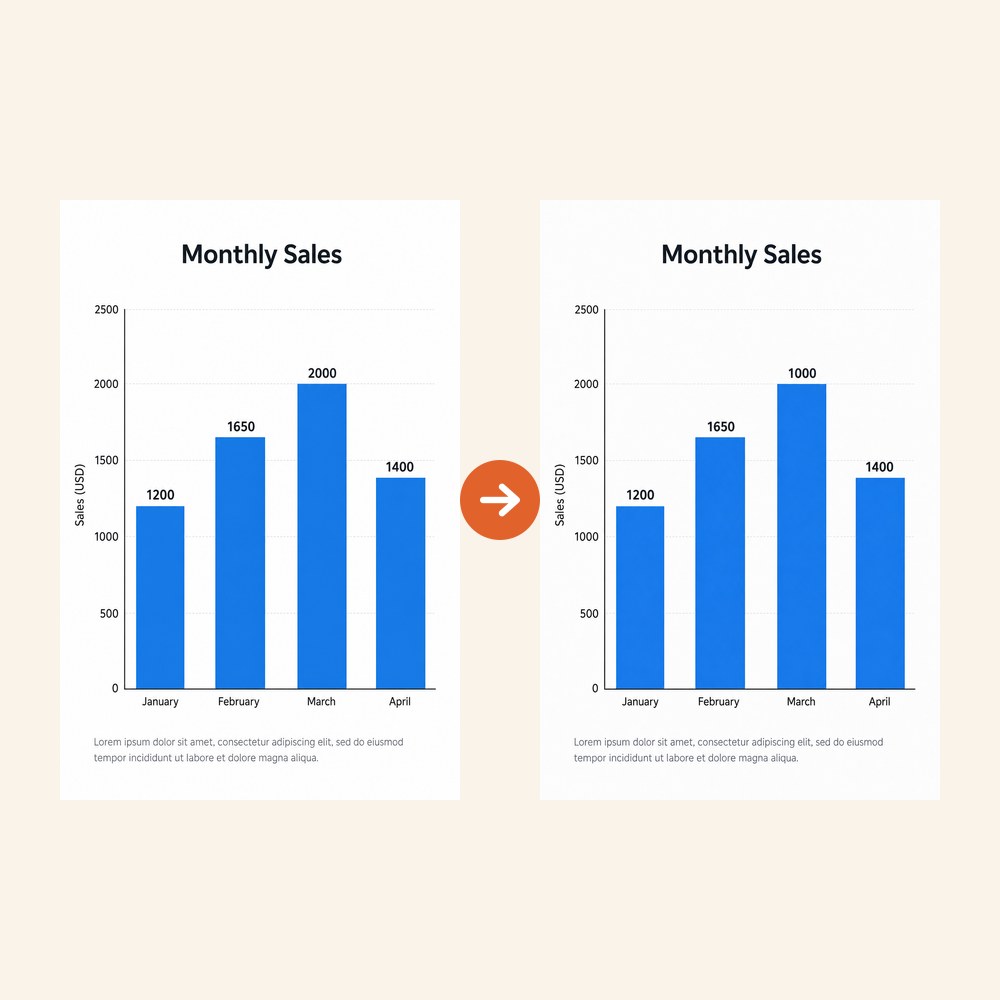
Edit Numbers in Image - Chart figure: 2,000 → 1,000 (bars and colors untouched)Chart figure: 2,000 → 1,000 (bars and colors untouched)
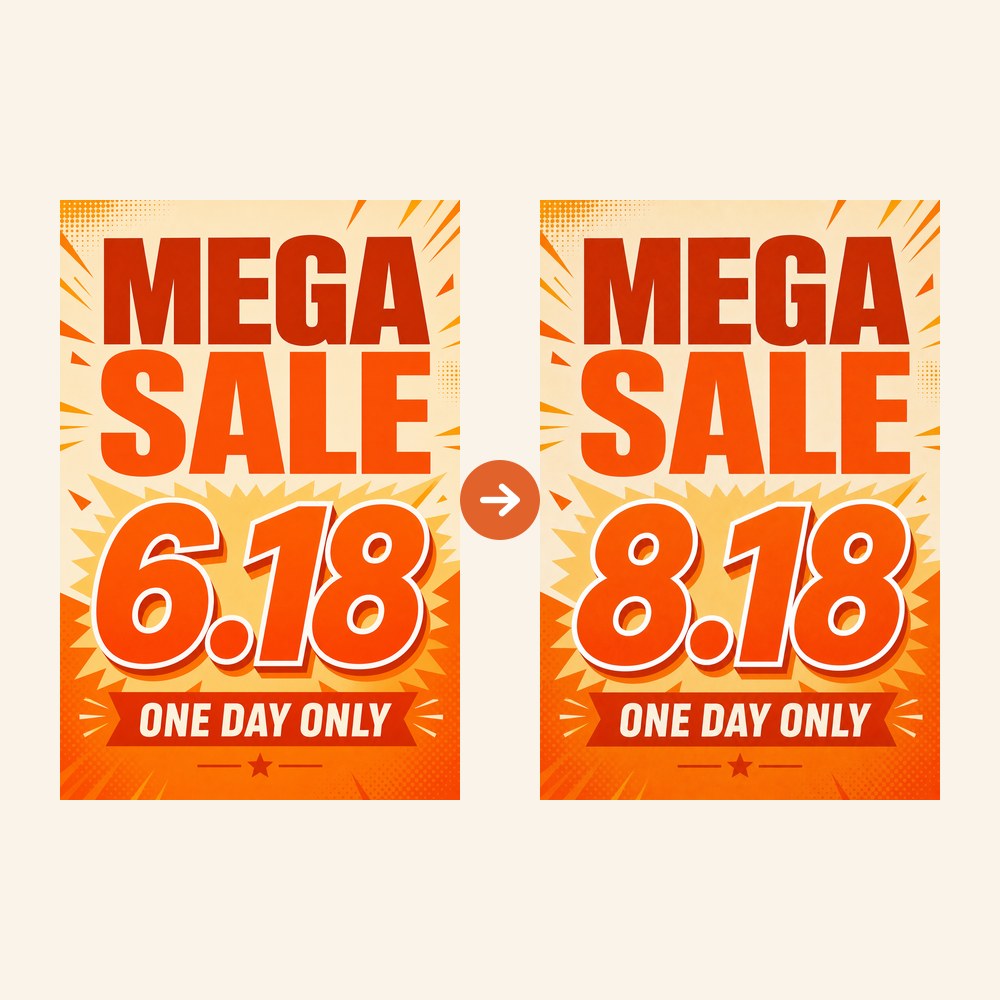
Edit Numbers in Image - Event date: June 18 → Aug 18Event date: June 18 → Aug 18

What can you change with it?

Prices are the classic case. A restaurant updates its menu twice a year but the designer who made it is long gone; a shop reprints price tags for every promotion; an online seller reuses one product banner across seasons. Box the old price, type the new one, and the finished design keeps working — no source file, no Photoshop, no tracking anyone down.

Event posters, sale banners and countdown graphics usually expire because of one number: the date. Change June 18 to Aug 18 and the same poster runs again — typography, background and layout survive untouched.

Report and presentation graphics are another frequent one: the chart image in a business report says 2,000 but the corrected figure is 1,000, and the original spreadsheet is nowhere to be found. Box the printed label and fix it — bars, colors and gridlines stay put. (For data-driven redrawing, go back to a charting tool; this edits the printed digits.)

Discount percentages, stock counts, phone numbers, house numbers, jersey numbers — if it's digits printed on an image you own, the same box-and-retype flow applies.

How it works

  • Upload the image — price tag, menu, poster, chart or screenshot (PNG, JPG or WebP).
  • Draw a box around the number you want to change, slightly larger than the digits themselves.
  • Type the new value (e.g. "Change $29.99 to $19.99") and generate. The result keeps the original image size; download it as PNG.

What images work best

  • Flat graphics are the most reliable: menus, posters, price tags, charts, app and website screenshots.
  • Photos also work when the digits are clearly legible — a storefront sign, a product label, a jersey. Perspective and lighting are matched automatically.
  • One number per edit gives the cleanest result; for a whole menu, download the result and edit the next spot.
  • If the font matters, say so: adding "keep the same font and color" to the instruction removes ambiguity.
  • Very tiny or blurry digits (dense tables, low-res screenshots) may lose fidelity — use the highest-resolution original you have.

Frequently Asked Questions

Does it change the rest of the image?

Normally no: only the number inside the box is replaced, and background, other text and numbers, and layout are preserved. One exception to watch: the number your instruction mentions must actually be inside the box — if you write "change 29 to 30" but the 29 sits outside your box, the AI may edit that outside spot instead. Make sure your box covers the number you want changed.

Will currency symbols and decimal formatting be kept?

Yes. By default only the digits change — $, €, %, decimal points and thousands separators stay as they are. If you want a symbol changed too (say $ to €), just say so in the instruction.

Can it change the figures in a chart or report graphic?

Yes — one of the most common uses: box a figure on the chart (say 2,000 → 1,000) and only that number changes, while colors, bars and layout stay untouched. Note it edits the printed number itself; it does not recalculate or redraw bars and curves to match the new value — for that, go back to the original charting tool.

Can I change several numbers at once?

One box per edit gives the most reliable result. To change several numbers (like re-pricing a whole menu), download the result and edit the next spot — one box at a time.

How is this different from asking ChatGPT or Gemini?

Chat tools regenerate the whole image — the number may come out right, but composition, colors and the details you liked drift, and you keep negotiating ("don't touch the background"). Here you box the digits, say the new value, and only the boxed area changes — in one pass.

Is it free to try?

Yes. New accounts get 20 free credits on signup and each edit costs 20 credits, so you can run one full edit for free — no credit card, no subscription. After that credits are pay-as-you-go and never expire.

What formats and sizes are supported?

Upload PNG, JPG or WebP. The output keeps your original image dimensions — a wide banner stays wide, a tall menu stays tall — and downloads as PNG.

What can I not use it for?

DrawPic is for your own price tags, menus, posters, charts, and marketing visuals. Do not use it to alter receipts, invoices, IDs, transcripts, contracts, or any document meant to prove a fact.

Related Tools

Edit Text in ImageBox the words in your image, retype them — everything else stays identicalAI Inpaint EditorBox-select an area, change only that — the rest stays untouched